
Published by PlayTopUp · Sources reviewed 25 November 2026
Setting up a sign-in method is only one part of protecting a Roblox account. You also need a way back in when a device is unavailable and a way to review devices that are already signed in. Work through those three questions while you still have access to the account.
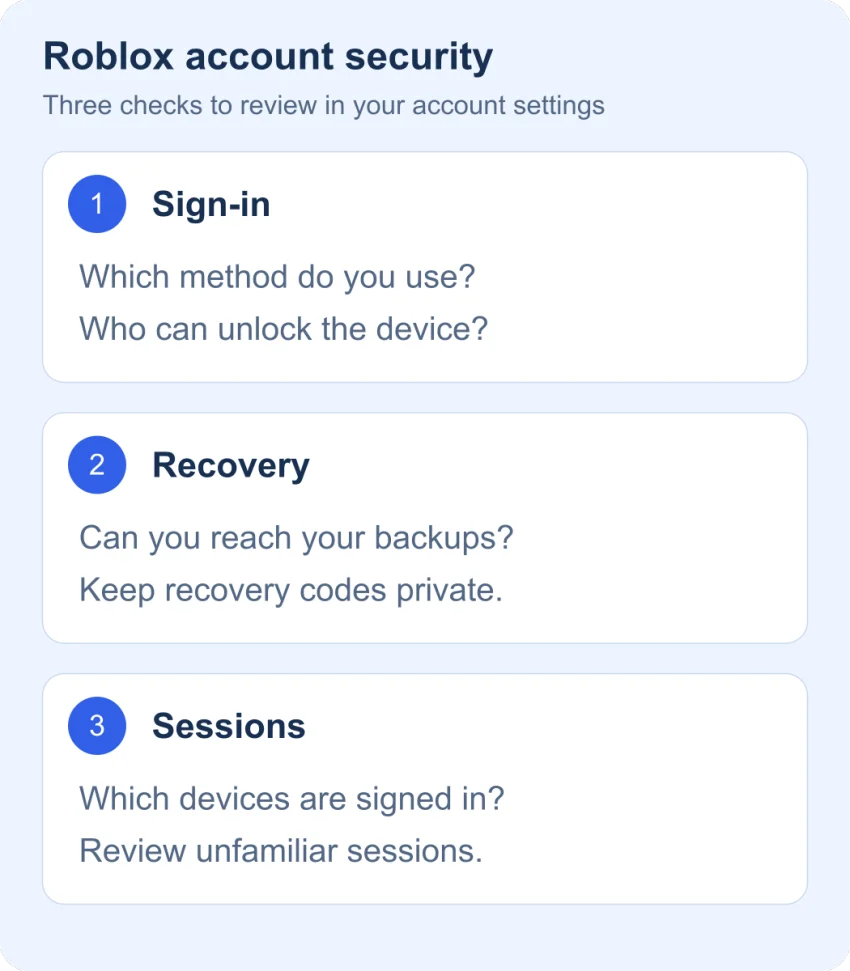
Illustration by PlayTopUp. This is a checklist, not a screenshot of Roblox settings.
1. Check where a passkey will be saved
A Roblox passkey lets you authenticate with your device's unlock method. Roblox's setup route is Settings, then Account Info and Login Methods. Follow the Add Passkey prompts on a device you own. A person who can unlock a shared device may also be able to use a passkey stored there, so choose the device before starting. Read the official passkey instructions.
Think through an ordinary change of device: if your phone breaks, which other device or recovery method would you use? Keep that answer separate from the phone you rely on every day. You do not need to place private codes in a public checklist to record that a backup exists.
2. Prepare recovery before you need it
Roblox provides recovery-code controls in Settings under Security. Save the codes privately. They are single-use, and generating a replacement set invalidates the previous set. Its recovery guidance also explains that losing a primary verification method can require two different ways to establish ownership. Review the backup options available to your account. Check verification and recovery requirements.
A useful personal record contains the date you checked recovery, whether you can reach the associated email and where you keep your backup material. It should not contain the actual codes in a place shared with friends, a seller or a public support discussion.
3. Understand Enhanced Protection before enabling it
Enhanced Protection is a separate choice in Roblox's Security settings. It requires a passkey, verified email and a further recovery option. It also changes the challenges you can use: ordinary emailed and authenticator-app codes no longer satisfy its verification challenges. Read the eligibility prompts and check your backups first. Review Enhanced Protection.
If you share a household device, include that device in your plan. Decide which person controls its screen lock and whether a different personal device is a better place for your sign-in method.
4. Review existing sessions
Open Security and look for Where you're logged in. Roblox lists sessions with information such as device, approximate location and activity time; some older entries can have incomplete information. Review an entry before deciding whether to end it. The same screen offers controls for individual sessions and other sessions collectively. See session-management instructions.
If you have already lost access
Use Roblox's official recovery process. Its guidance covers removing suspicious downloads, resetting access and contacting support from an original account or billing email when available. Supplying ownership information does not guarantee recovery or restoration of lost items. Open Roblox account-recovery help.
A checklist to keep
- I know which device holds my sign-in method.
- I can reach my recovery email and have reviewed the available backup options.
- I have checked the list of signed-in devices.
- I know where to find official recovery help.
Sources checked 25 November 2026. Options can vary by account and device; follow the prompts currently shown by Roblox.