
Published by PlayTopUp · Sources reviewed 25 November 2026
If Zenless Zone Zero opens with unfamiliar progress on your PS5, collect the details of the character you expect to see before changing account links. An account comparison is more useful than treating the new screen as proof that your original progress has disappeared.
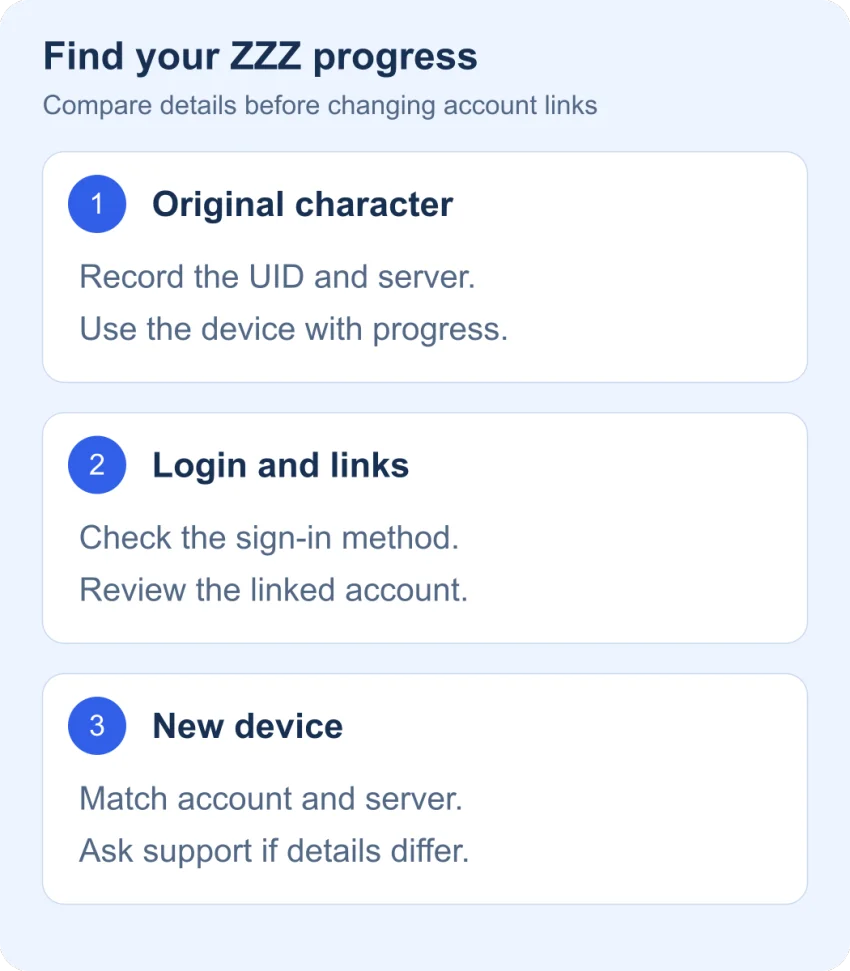
Illustration by PlayTopUp. It represents the checks below, not an in-game screen.
1. Record the character you want to continue
Start with the device that still shows your expected character, if you have it. Record the UID, server, login method and a description of the progress you recognise. Keep this as a private reference for comparing the other device.
HoYoverse's missing-progress guidance tells players to check both the server and the account used to sign in. A linked-email sign-in and a Google sign-in are different methods unless the accounts have been linked accordingly. Read the missing-progress checks.
2. Compare the login method
Write down the button you normally use on the original device: an email-and-password form, Google, Apple or another linked service. The same visible email address does not by itself establish that two login methods lead to the same HoYoverse account. HoYoverse specifically highlights this distinction in its changed-device troubleshooting. Read the changed-device guidance.
For example, if the familiar character appears after selecting Google but the new device used the email form, record that difference. Confirm the link in the account settings before deciding that the character needs to be recreated.
3. Check the account linked on PlayStation
Open the game's Account settings and User Center on the console to inspect the associated account. HoYoverse describes two routes: linking an existing account during the first-launch prompts, or linking an email to an account that began on PlayStation so it can be used elsewhere. Read the PlayStation linking instructions.
If you have used the same PSN account for a HoYoverse game before, check the existing link carefully. The ZZZ official PS5 FAQ explains that this link can carry into the first ZZZ login. It also explains that different servers do not share progress and that PS5 server assignment follows the PSN account region. Check the game-specific PS5 FAQ.
4. Make the mismatch visible
| Detail | Original device | PS5 |
|---|---|---|
| UID and familiar character | Write down what you recognise | Compare the displayed character |
| Server | Record the selected server | Check the game and PSN-region rules |
| Login / linked account | Record the method used | Inspect User Center |
A difference in this table gives you a specific question to resolve. Keep purchases out of the diagnosis: buying currency does not establish that two devices are using the same character.
5. Read the unlinking limit before changing a link
HoYoverse's PlayStation unlinking instructions state that a PSN account can be unlinked only once. Check the current instructions and account details before using that option. If you cannot identify the correct account, ask official support to review the situation first. Read the unlinking instructions.
For a support request, prepare the game UID, platform, server and a clear description of the mismatch. Include a relevant screenshot without unrelated private details. Use the game's Feedback route or the official help center. Find the official support options.
Sources checked 25 November 2026. Game interfaces and linking procedures can change; use the current official prompts for your account.